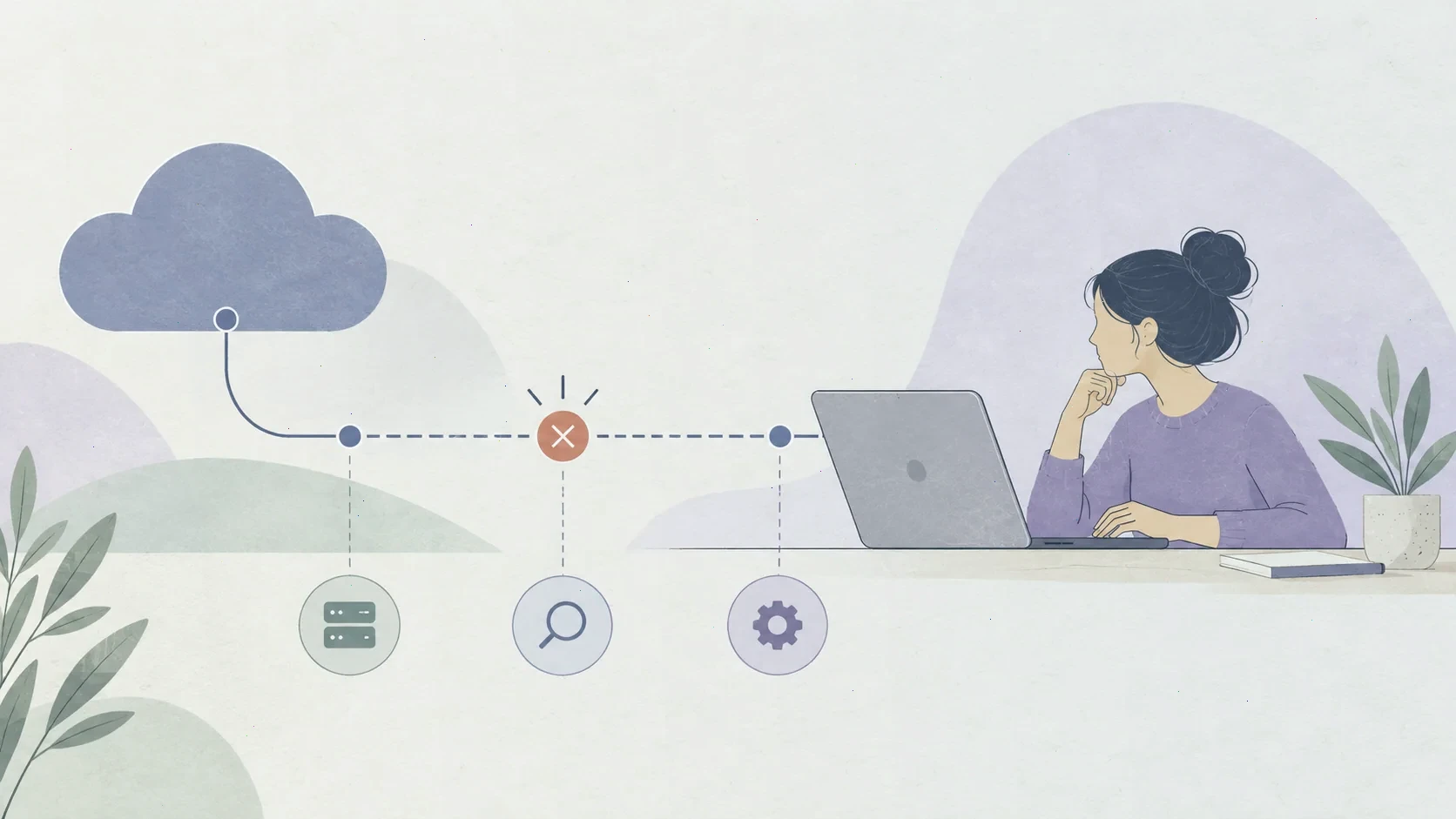
A connection that drops in WatchGuard Mobile VPN with SSL always breaks at one of a few well-defined layers: the physical network you are sitting on, the path between you and the Firebox, the TLS session that carries the tunnel, the session state the gateway keeps for your user, or the virtual adapter and routes on your own machine. The symptom looks identical from the tray icon in every case, which is exactly why people so often fix the wrong thing.
Before changing anything, write down four facts: the exact moment the drop occurred, whether it coincided with a network change such as joining a new Wi-Fi or waking the laptop, whether other internal resources failed at the same time as the tunnel itself, and whether the drop reproduces from a different network. These four observations separate most causes before you have touched a single setting.
Start with the network you are sitting on
The tunnel rides inside ordinary TLS traffic, which survives most networks, but a surprising number of drops begin locally. A power-saving setting that puts the wireless adapter to sleep, a driver that renews its DHCP lease in the middle of a session, or a router that reboots nightly will break the connection with messages that suggest a VPN problem where none exists.
Test the baseline first: open a public website and keep a continuous ping running to a reliable external address while connected. If the baseline breaks at the same moment the tunnel drops, the cause is under your own desk, not on the way to the gateway. Laptops that drop exactly when they wake from sleep usually have a fast-connection feature that tears down the adapter before the VPN service can respond, and this is one of the most reported patterns in the entire category.
Identify whether the path to the gateway is the problem
Between you and the Firebox sits every network operator in between, and occasionally one of them interferes. Corporate proxies that intercept TLS, captive portals that demand a fresh login, and deep packet inspection devices that dislike long-lived connections can all sever a session without warning. If your drops happen in specific places — a particular client's office, a certain hotel chain — the pattern itself is the diagnosis.
Check whether the Firebox address still answers on its SSL VPN port when the session is down. If the gateway is unreachable by a simple connection test, the tunnel cannot come back no matter what the client does. Session persistence works by keeping one long-lived connection alive; when that connection is killed externally, the client must renegotiate, and some networks make renegotiation impossible until you re-authenticate through their portal.
Understand session limits on the Firebox
The gateway keeps its own state for every connected user, and that state has rules you do not see as a remote worker. An idle timeout defined in the policy closes sessions that carried no traffic for a set period. A maximum session duration may exist regardless of activity. And a licensing seat pool means that when every seat is in use, a new connection — including your own automatic reconnect — can be refused outright.
If drops arrive at the same time each day, look for a scheduled event: a nightly reboot, a backup window that saturates the office line, or a licence renewal. If reconnects are refused while drops are frequent, ask your administrator how many mobile VPN seats the Firebox licence provides and how many are typically occupied. This is a conversation, not a client setting, which is precisely why it gets overlooked.
Check the virtual adapter and routes on your machine
On the workstation side, the session depends on a virtual network adapter and a set of routes that steer office-bound traffic into the tunnel. Third-party security software that resets adapters, other VPN clients fighting over the routing table, and manual network configuration left over from a previous job can all make a healthy TLS session useless, because the traffic never enters the tunnel even though the tunnel is up.
A practical check: while connected, verify whether internal resources respond and public internet still behaves as expected. If the tunnel is up but the office is unreachable, the problem is routing rather than the session. If both work for a while and then fail together, the session itself is being torn down. These two patterns point at entirely different owners of the problem — your desktop configuration versus the gateway or the path.
Reconnect deliberately instead of repeatedly
When a session drops, resist the reflex to click Connect a dozen times. Every attempt consumes authentication processing on the gateway, and rapid retries from many users after a shared outage can turn a short gateway hiccup into a self-inflicted lockout. Wait a moment, confirm the underlying network is back, then reconnect once.
If the client offers a reconnect or auto-resume option, leave it enabled — it is designed to restore sessions after brief interruptions without user intervention. Disabling it usually converts short interruptions into manual reconnections and generates more support contacts, not fewer.
Escalate with evidence rather than impressions
When the problem needs your administrator, bring evidence. Note the client version, the operating system, the network type at the time of each drop, the timestamps of several drops rather than one, and whether the pattern correlates with sleep, network switches, or times of day. A report describing behaviour over a week is worth more than a dozen separate tickets, each describing one unexplained failure.
Remember what this website is. We are an independent fan site, so we cannot see your gateway logs, inspect your policy, or test your licence pool. Only your network administrator or WatchGuard's official support channel can act on the gateway side. If you are evaluating the software from scratch, the responsible place to obtain it is the vendor's own site when you download WatchGuard VPN client software — never a mirror. Bring the evidence above to whoever administers the Firebox, and the conversation will be short.